
You may find yourself needing to change the name of your business Page on Facebook. Perhaps you have sold the business, gone out on your own, joined a collective, or rebranded. Whatever the reason, the buttons move around as Meta updates its menus, and what was once easy can become complicated. Here is the up-to-date desktop guide, using an example business.
Overview of the process
- Switch to your Page and open Settings
- Select Page setup
- Select View next to Name
- Edit the Name and Username
Step 1: Switch to your Page and open Settings
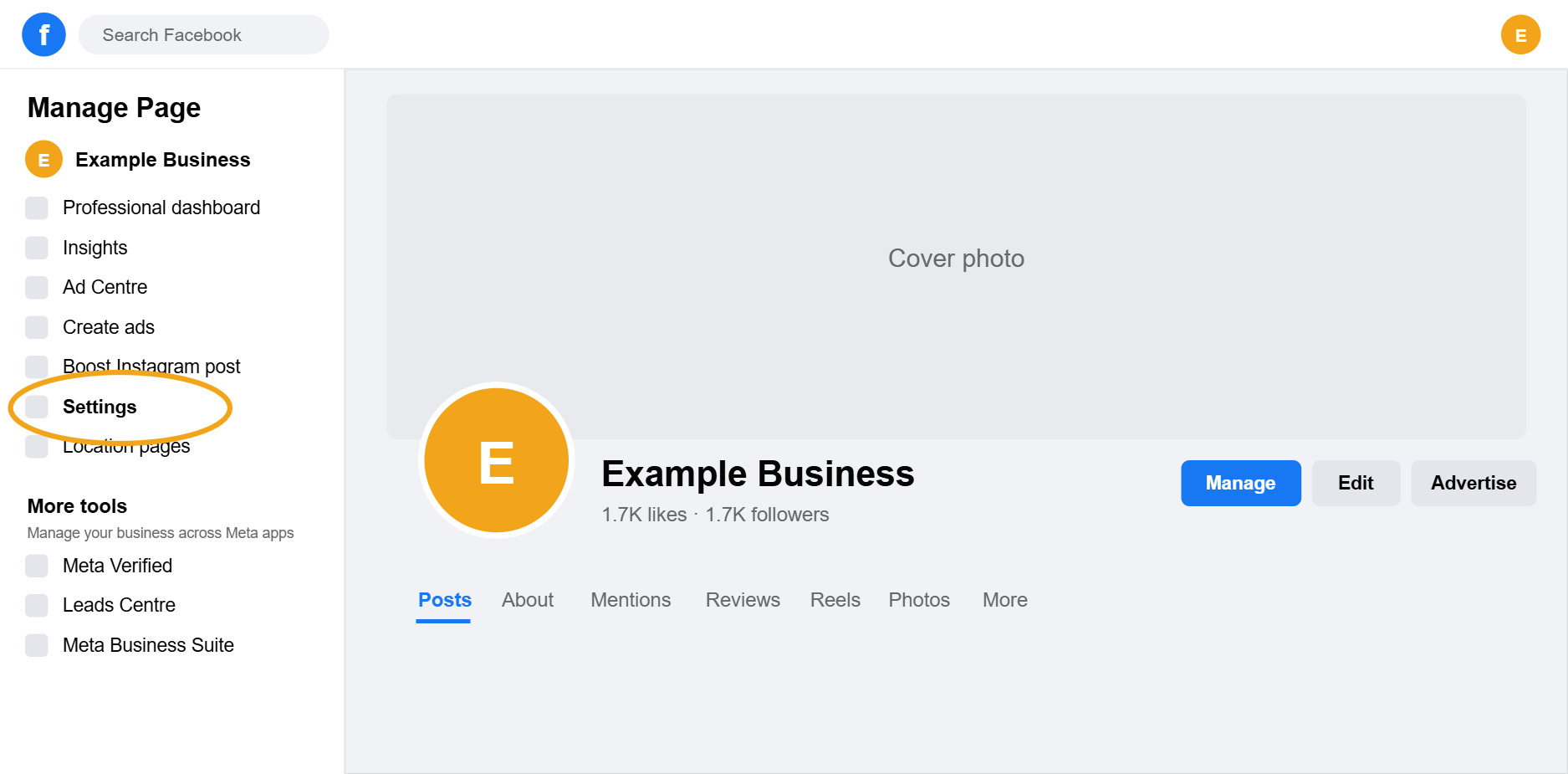
In your browser, switch from your personal profile to your business Page using the profile icon in the top right corner (the Page is the one with likes instead of friends). Once you are acting as the Page, find Settings in the Manage Page menu on the left.
Step 2: Select Page setup
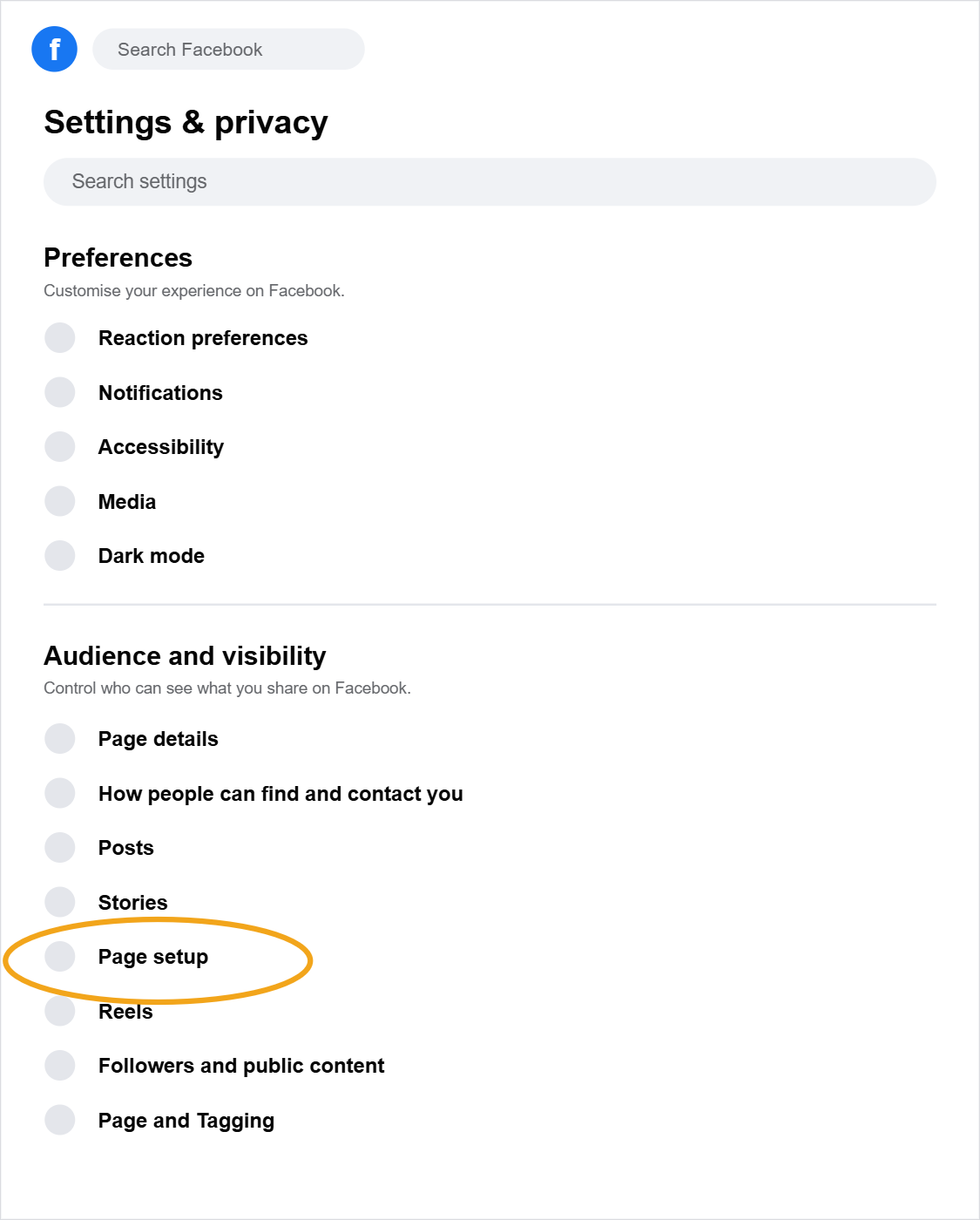
The left menu changes to Settings and privacy. Under Audience and visibility, select Page setup.
Step 3: Select View next to Name
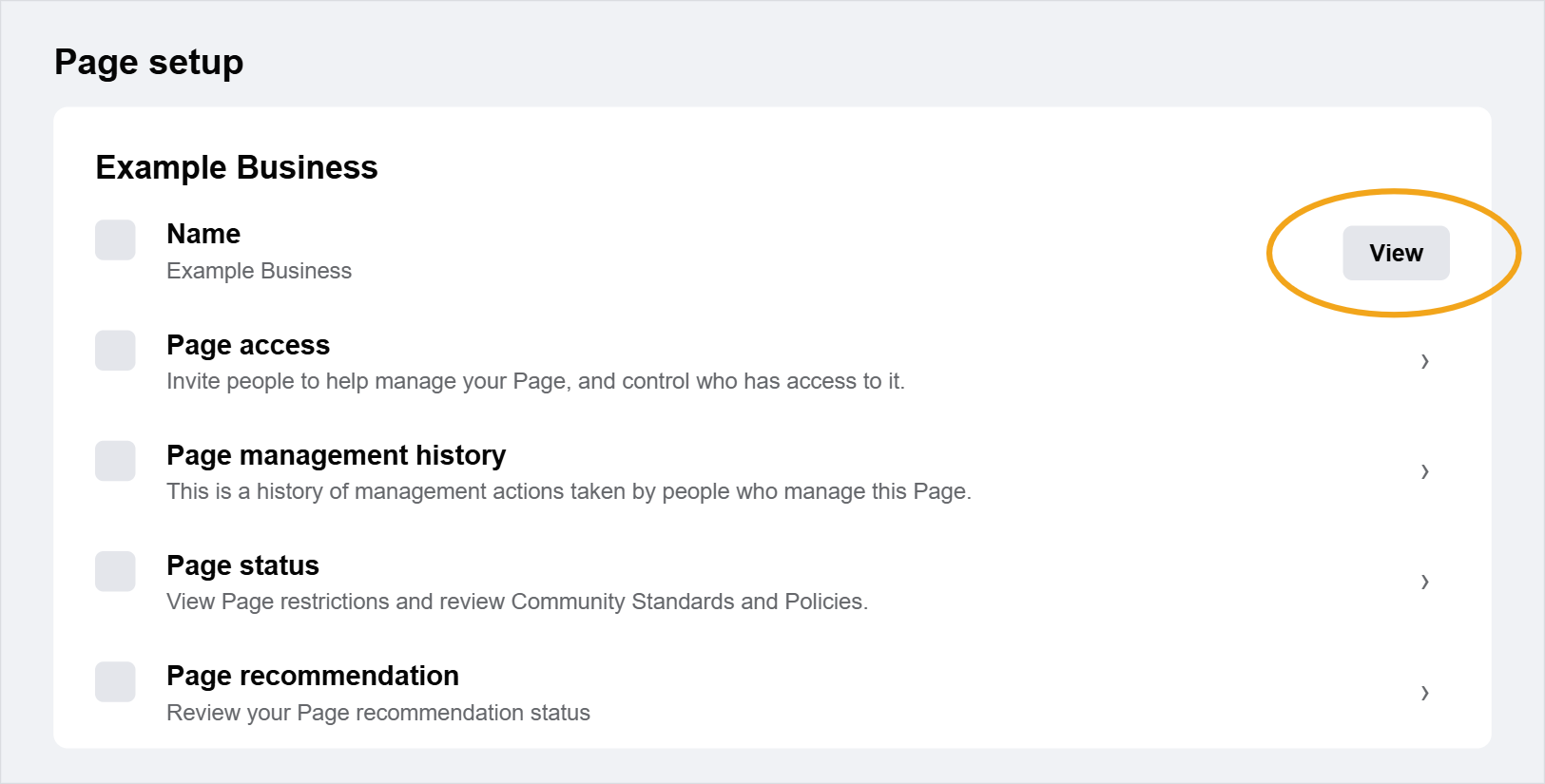
On the Page setup screen, click View next to the Name option.
Step 4: Edit the Name and Username
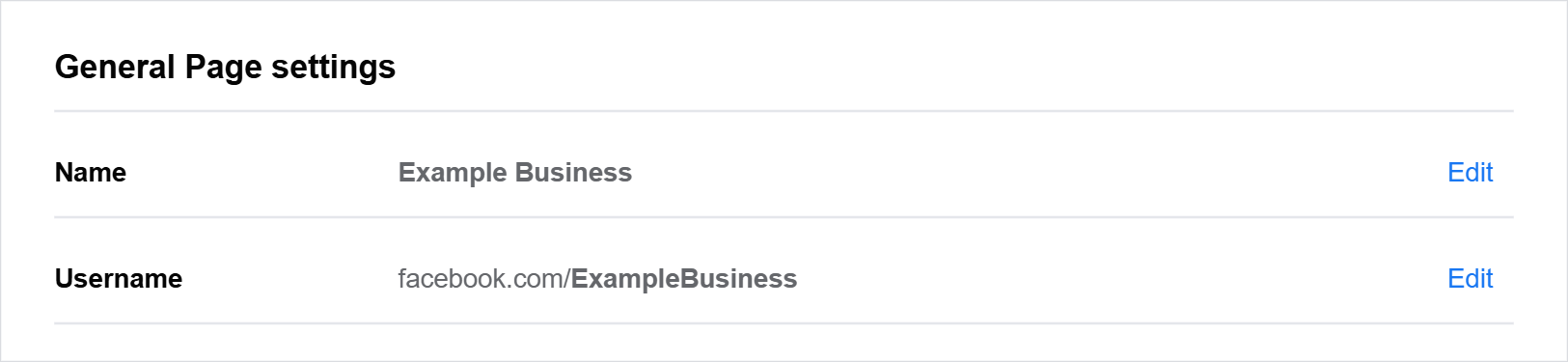
The General Page settings screen shows your Page name and username (your Page address). Click Edit on each line to change them. The name is what people see on your Page and posts. The username is the part of your Page link after facebook.com, so it is worth updating both when you rebrand.
Quick tips
- Facebook may review name changes before they take effect, so allow a few days
- You can only change the name again after a waiting period, so double check spelling before saving
- Update the username too so your Page link matches the new name
- Remember to update the name anywhere else it appears, like your website and email signatures