
Your Google Business Profile (the listing that appears on Google Search and Maps) has its own set of managers, separate from your email or website logins. That means you can give a team member or an agency access without ever handing over your password.
This guide walks through adding an admin or manager to your Business Profile, using example account details.
Overview of the process
- Find your Business Profile on Google
- Open Business Profile settings
- Select People and access
- Select Add
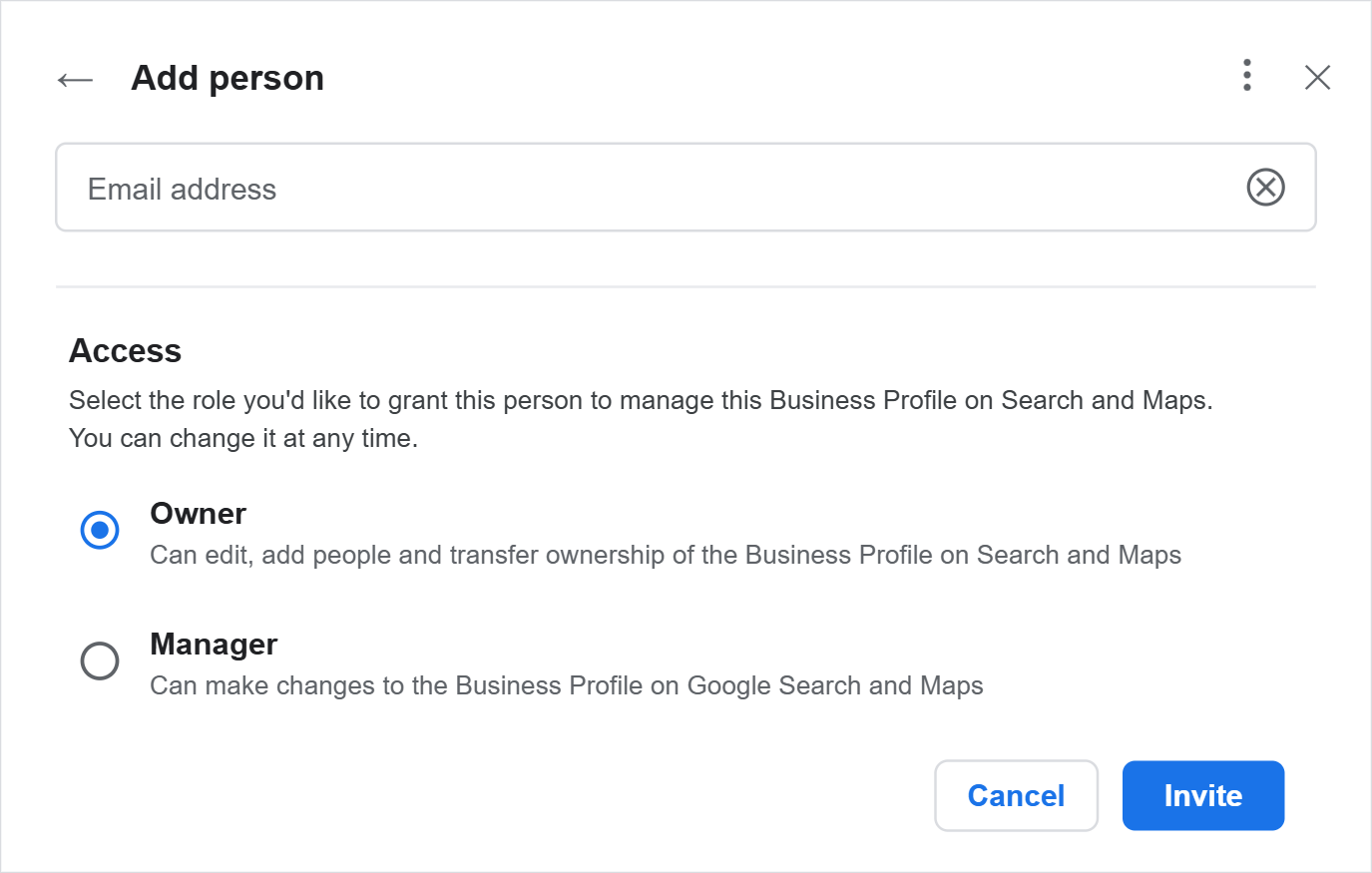
- Enter their email and choose Owner or Manager
Step 1: Find your Business Profile
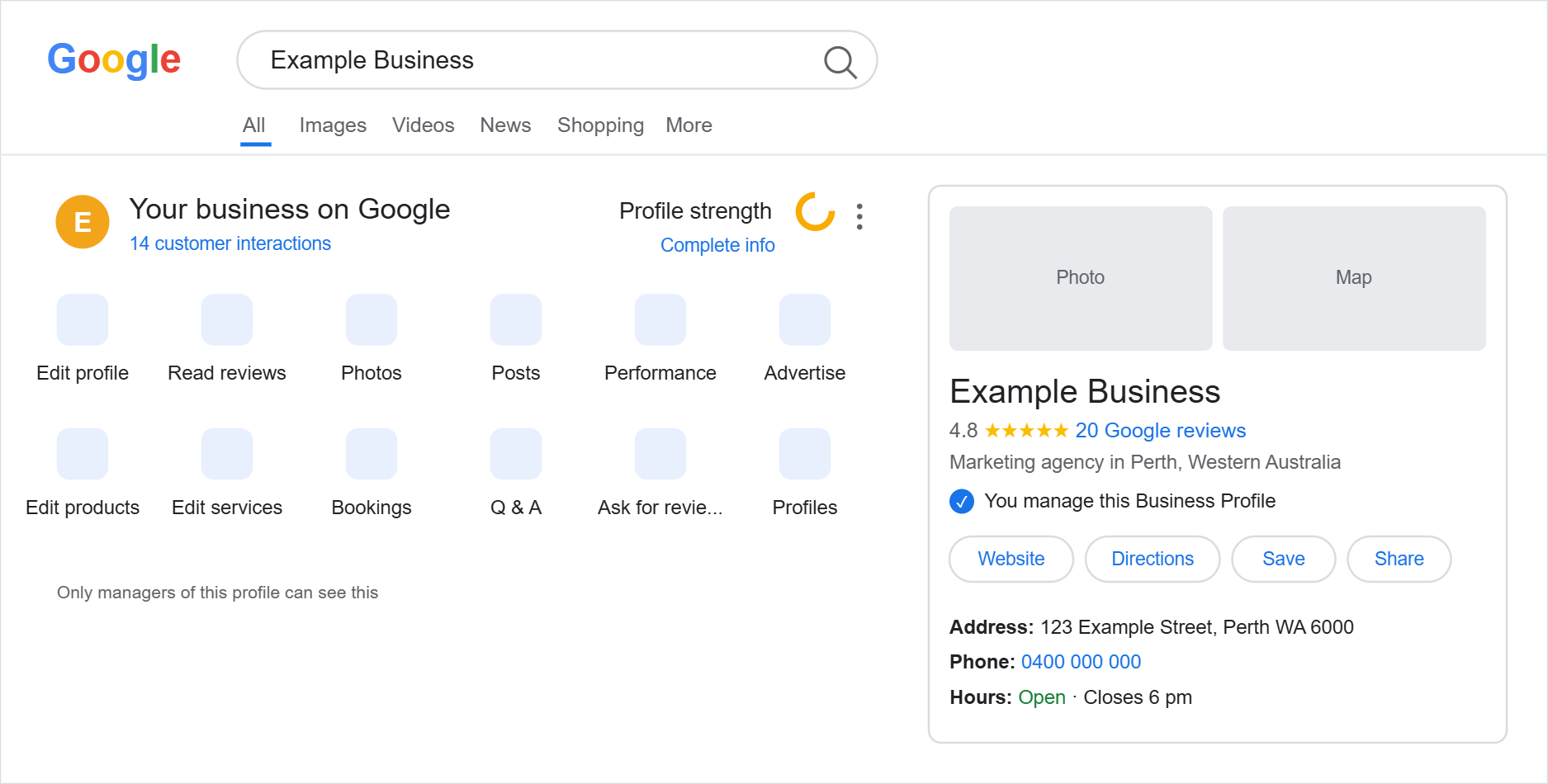
Sign in to the Google account that manages your business, then search your business name on Google. You will see the Your business on Google dashboard above the search results, with your public Business Profile panel on the right.
Step 2: Open Business Profile settings
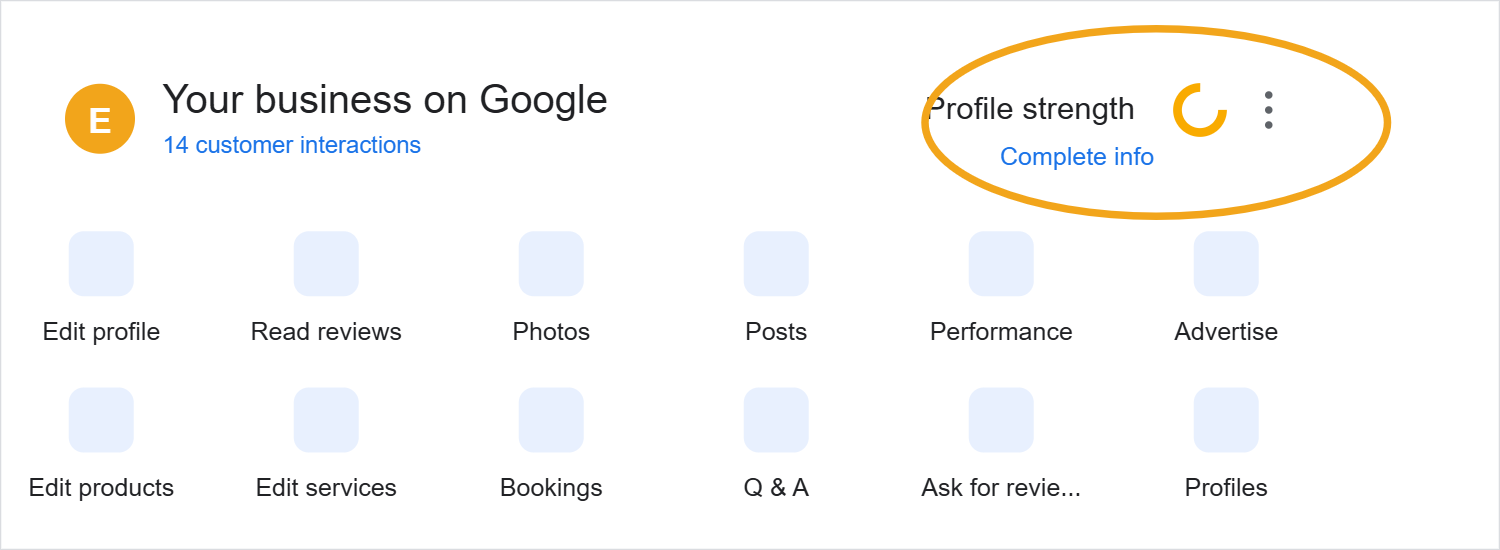
Click the three dots next to Profile strength, then select Business Profile settings from the menu that appears.
Step 3: Select People and access
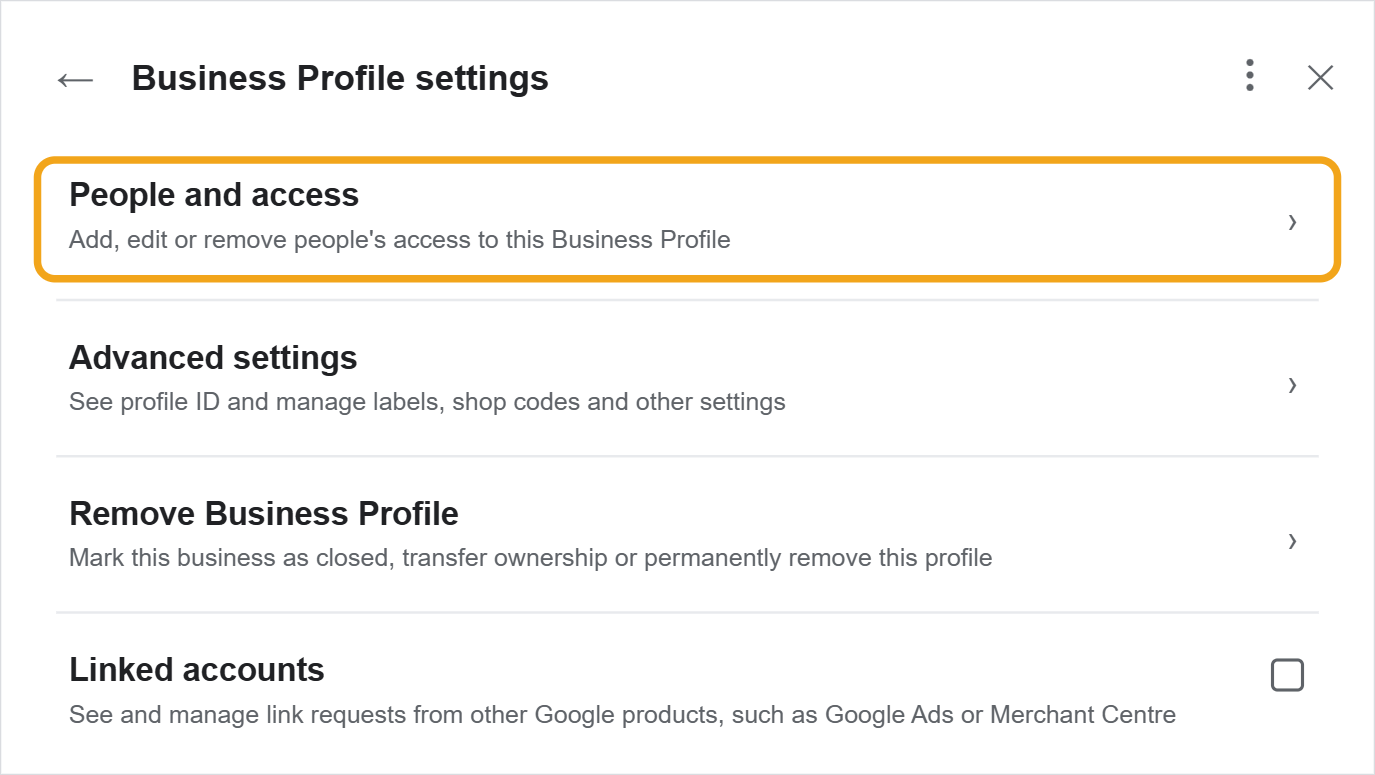
In the settings menu, choose People and access. This is where everyone with access to the profile is listed.
Step 4: Select Add
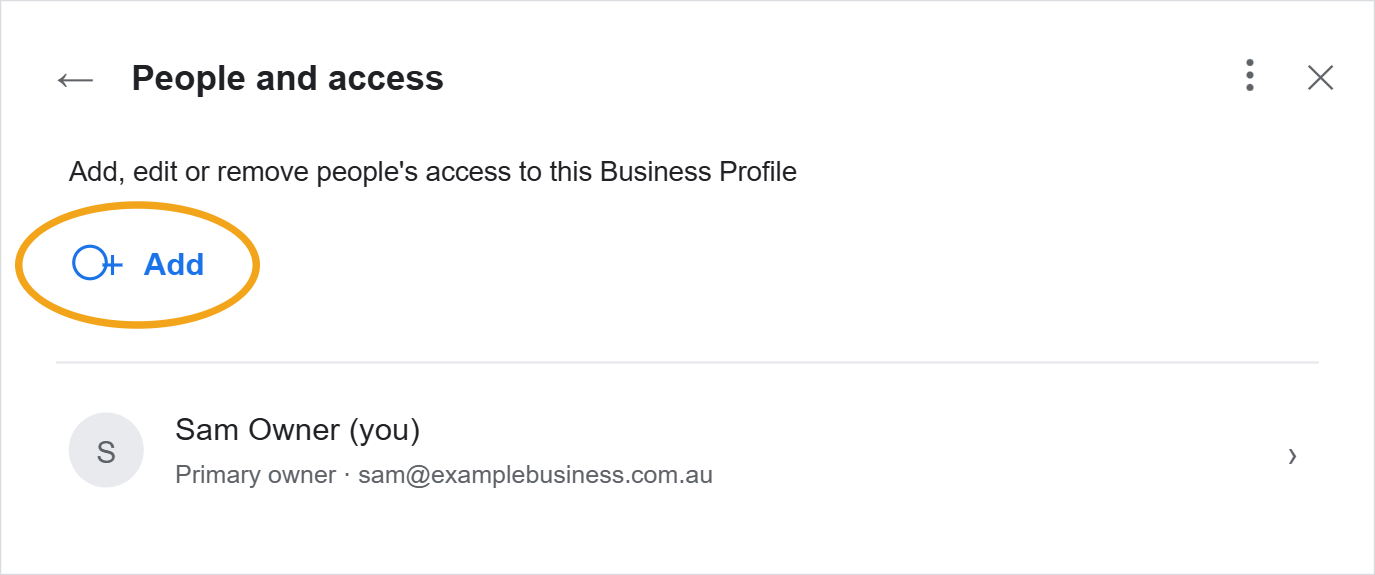
The People and access panel shows the current owners and managers. Click Add to invite someone new.
Step 5: Enter their email and choose a role
Enter the Google account email address of the person you want to add, then choose their access level. Owner can edit the profile, add or remove people, and transfer ownership. Manager can make changes to the profile but cannot manage access. If Marketing Jumpstart is managing your profile, we will usually ask for Owner access so we can add our team members. For your own staff, Manager is usually the right fit. Click Invite to send the invitation.
Removing access
The same screens work in reverse. Open People and access, select the person, and remove them. It is worth reviewing this list from time to time so that only current team members and partners have access.
Quick tips
- The person you invite must accept the invitation from their email before they get access
- Use the Google account email of the person you are adding, not a generic inbox
- Only give Owner access to people you trust to manage access for others
- Review People and access periodically and remove anyone who no longer needs it